![tractivity-email-logo.png]](https://www.tractivity.co.uk/hs-fs/hubfs/Logo/tractivity-email-logo.png?width=180&height=36&name=tractivity-email-logo.png)
From April 2025, logging into your Tractivity system will use a method called Multi-factor authentication. Multi-factor authentication, also known as MFA, provides an extra layer of security to your Tractivity system. Anyone logging into Tractivity will need to authenticate using MFA before being granted access; after signing in with SSO, they will need to verify the log-in using a separate authentication method. This aims to further ensure that only the intended user will be able to log in to a Tractivity account.
To use MFA, please ensure that you have an authenticator app downloaded to a smart device. Examples include Microsoft Authenticator, Google Authenticator, or OKTA. You will find these available for download on the Apple and Android app stores. Please consult your IT team for which authenticator to use, or if your authenticator app is experiencing any technical issues.
Setting up Multi-factor Authentication
When logging into Tractivity for the first time (or the first time after MFA is implemented), you will be greeted with a screen similar to the one below:
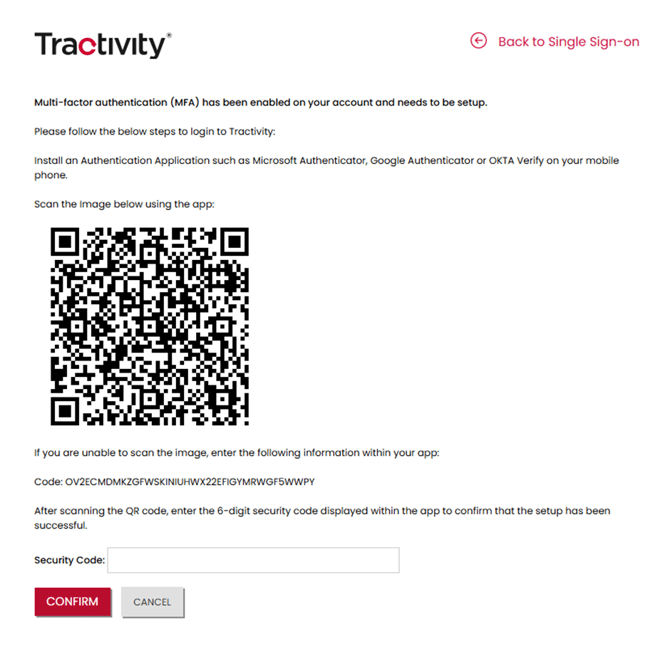
Scan the QR code with your authenticator app. Your app will return a 6-digit security code. Enter that code into the Security Code field, then click Confirm. Multi-factor authentication will now be set up for your Tractivity account.
Logging into Tractivity with Multi-factor authentication
Each time you log into Tractivity, you will need to authenticate your log-in using MFA. After entering your username and password, you will be prompted for a security code from your authenticator.
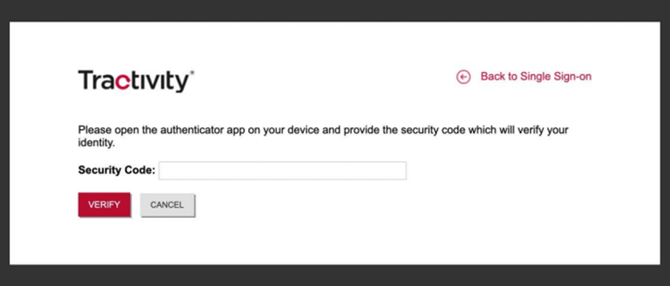
Open the authenticator app on your smart device to find the code. Then enter this into the Security Code field.
Make sure to enter the code without any spaces. For example:
- 123 679 - This will be unsuccessful.
- 123679 - This will be successful.
Click Verify once you have completed this. You will then be signed into Tractivity.
Have any questions? Check out our FAQ on MFA and Single Sign-On: Multi-Factor Authentication & Single Sign-On - FAQs, or contact your Customer Success Manager at customersuccess@tractivity.co.uk.
Last updated 16/7/2026